
Toddler Tech Talk
How to Lock Your iPhone (For Real): A Guide to Guided Access | Toddler Tech Talk
The secret "parent mode" hidden in your iPhone settings that makes ToddlerLock unshakeable.
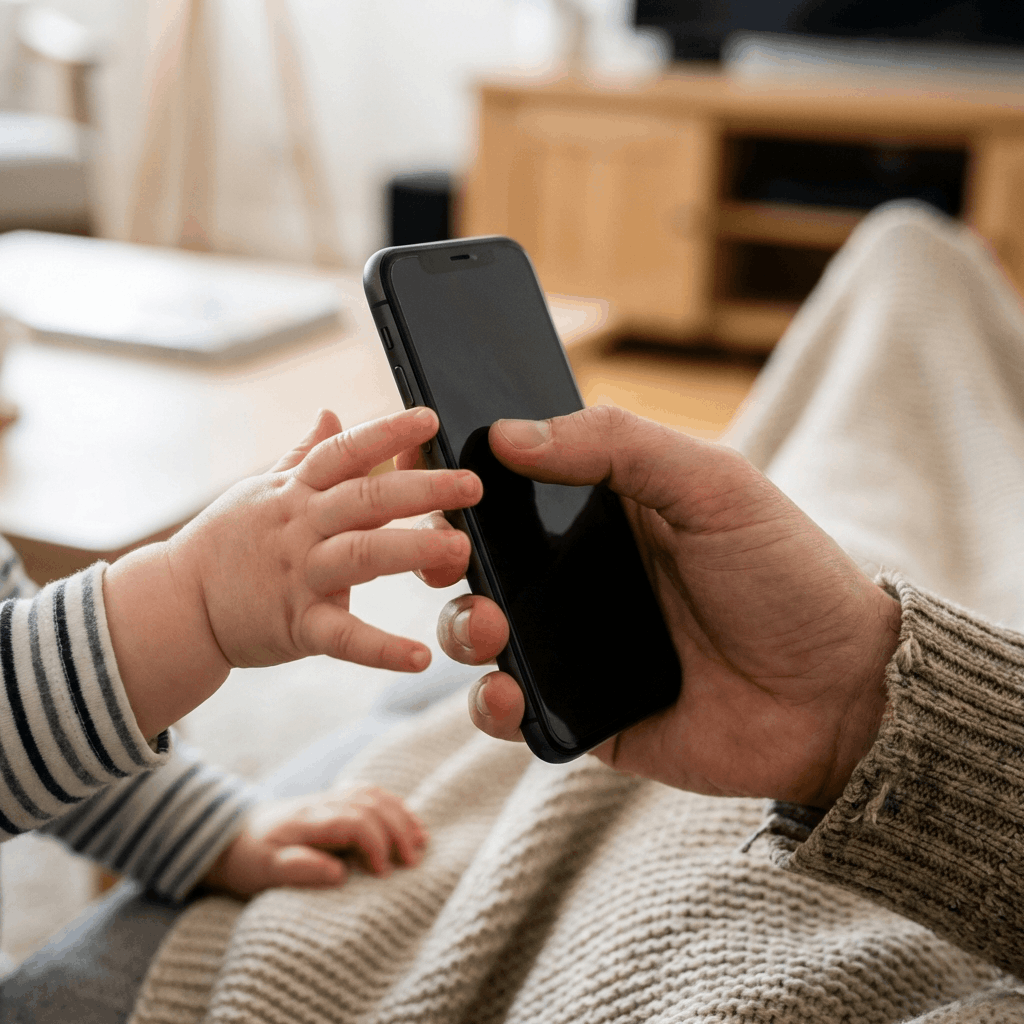
If you've ever handed your phone to your toddler only to have them hand it back thirty seconds later because they accidentally swiped into your email, this post is for you.
When I was building ToddlerLock, I knew one thing: I didn't want to build a "fake" lock. Toddlers are geniuses; they can find a "Close" button faster than we can. I wanted a way to physically prevent the phone from leaving the app.
The answer was already hidden in your iPhone settings. It's called Guided Access as the real iPhone lock.
What is Guided Access?
Think of Guided Access as a "Digital Seatbelt." It's a native Apple feature that locks your iPhone into a single app. Once it's turned on, the Home bar disappears, the power button is disabled, and your toddler is safely stayed inside ToddlerLock until you say otherwise.
How to Set It Up (The 60-Second Version)
Setting this up once will save you a thousand "Oops, Mama!" moments. Here is how to do it:
- Open Settings: Go to Accessibility.
- Find the Lock: Scroll down to the "General" section and tap Guided Access in Apple's own support guide.
- Toggle it ON: Flip the switch to green.
- Set Your Passcode: Tap Passcode Settings. You can set a specific 6-digit code (you can use something simple, like 111111) and enable FaceID/TouchID (very recommended!) to end the session.
How to Use It with ToddlerLock
Now that it's set up, using it is as easy as 1-2-3:
- Step 1: Open the ToddlerLock app.
- Step 2: Triple-click the side power button.
- Step 3: Tap "Start" in the top right corner.
That's it. Your phone is now a dedicated toddler device. Because ToddlerLock mimics your actual home screen, your little one feels like they have the "real" phone, but Guided Access ensures they can't swipe away to call your Aunt Martha at 11 PM.
Why This Combo is a Game-Changer
Most kids' apps try to keep kids inside using "child-proof" buttons that don't actually work. By combining the low-stimulation, familiar design of ToddlerLock with the hard-lock of Guided Access, you create a truly safe environment.
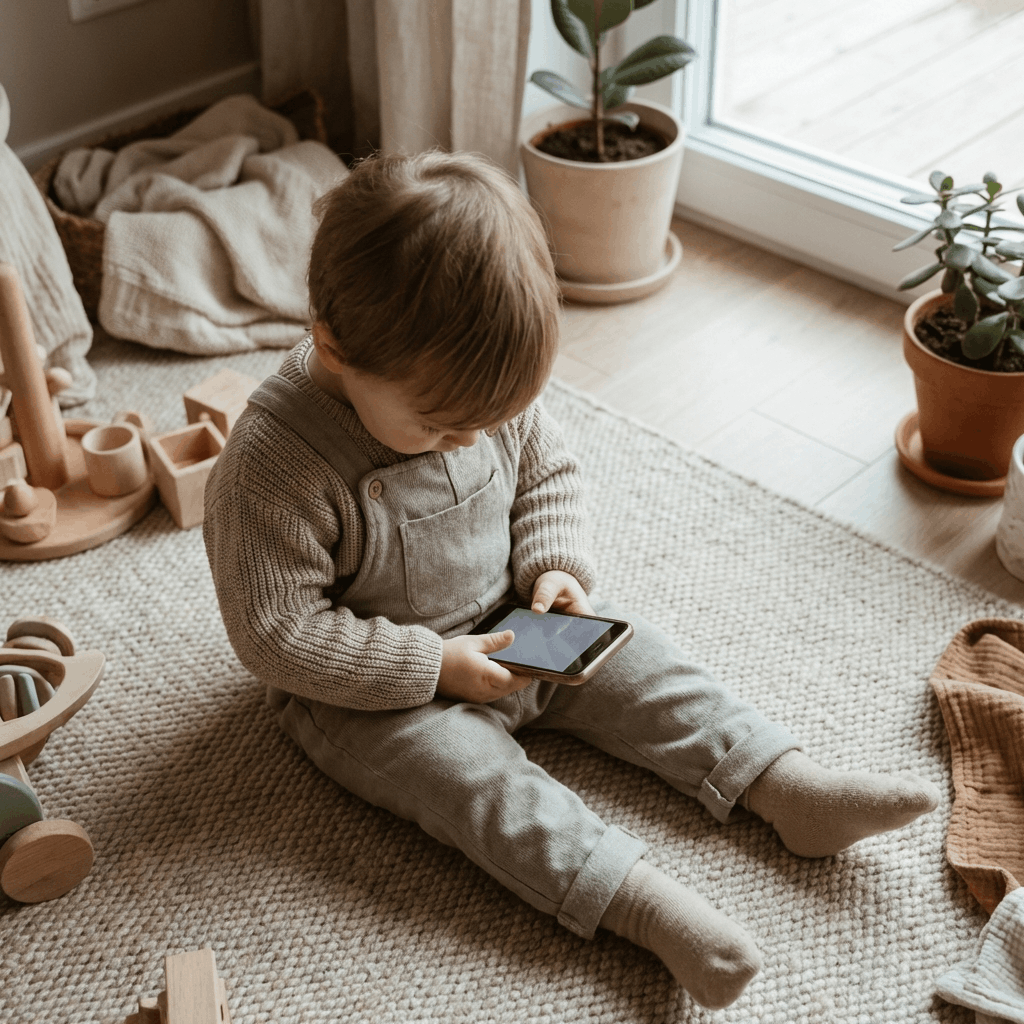
No ads, no accidental deletions, and no overstimulated meltdowns. Just safe, mimicking play.
Guided Access: The "Help, I'm Stuck!" FAQ
Even the best tech has its quirks. If you're staring at your screen wondering how to get your phone back, don't worry - I've been there. Here are the most common questions I get from parents using the ToddlerLock + Guided Access combo.
1. How do I get out of Guided Access mode?
It's the magic number: Triple-click the side button (or the Home button on older models). Enter your secret passcode, then tap "End" in the top-left corner. Your phone is officially back in "Grown-Up Mode."
2. Help! I forgot my Guided Access passcode.
Don't panic. If your passcode has slipped your mind, you can usually end the session using FaceID (if you enabled that in settings).
Pro-Tip: If this fails, you can force-restart your iPhone, but it's much easier to just use a passcode you'll actually remember - like your child's birth year.
3. How to force-restart your iPhone
This is a quick "1-2-3" rhythm. Don't hold the first two buttons; just press and release.
- Step 1. Press and quickly release the Volume Up button.
- Step 2. Press and quickly release the Volume Down button.
- Step 3. Press and hold the Side button (the power button) until the Apple logo appears on the screen (hold for about 10 seconds, or more). Ignore the Power Off slider if it appears.
4. My toddler keeps turning the volume all the way up. Can I stop that?
Yes! This is a "secret" feature. When you enable Guided Access, triple-click side button again - "Session Settings" appears the bottom. You can toggle off the Volume Buttons so the sound stays exactly where you set it. No more sudden "Baby Shark" at max volume.
5. Can I set a time limit?
Absolutely. In that same "Session Settings" menu, you can toggle on Time Limit. You can set it for 15 minutes, and the phone will automatically lock the session when time is up. It's a great way to let the "phone" be the bad guy instead of you!
6. Is it safe to leave my phone like this?
Because ToddlerLock is a low-stimulation app and Guided Access keeps them from roaming, it's one of the safest ways to handle tech. However, we always recommend active supervision. It's a tool to give you a hand, not a permanent babysitter.
Trusted references
Sources Worth Keeping Handy
I link to official support pages and reputable parenting or health resources when they help parents verify the safety steps behind the article.
Read next
Related Toddler Tech Guides

Share this article